



In this article we look at what Business manager Facebook is and why to use it in your marketing strategy
Facebook Business Manager is a free Facebook tool to help businesses manage and organize their team, Facebook pages and advertising accounts, from a single platform.
If you do online listings to find new customers, you can’t miss the powerful Facebook Business Manager tool. Haven’t created your account yet? Hurry up and read the article!
Do you remember the old Facebook Ads? Bad memories right? Now, with Business manager Facebook you can manage ad accounts, pages, people, company information, product catalog, billing, and plan large and complex projects in a few clicks from a single dashboard. Isn’t that great?
Facebook business manager: what is it
Business Manager is a free Facebook platform that helps advertisers in their marketing activities on Facebook and with external partners.
This tool is really valuable, for every business and marketer, because it allows you to create and track sponsored ads, administer, coordinate and organize assets such as page and ad accounts, and add a marketing agency or partner to better manage your business.
Facebook business manager: what advantages?
The main advantage is that you can manage everything from one platform: teams, ads, pages, campaigns, product catalogs, and billing.
But there is more.
With Facebook Manager’s Pixels you can track your conversions and create custom audiences.
Creating a business manager account is so easy, it will only take you a few seconds!
Business manager is really a godsend for all those agencies that need to manage and organize a marketing team and want to increase their business on Facebook, with sponsored ads and campaigns.
Nothing could be simpler and more extraordinary than this tool that allows you to create, plan and monitor any activity from a single account. But let’s look at the benefits in detail.
Facebook Business Manager allows you to:
- Access pages and advertising accounts without being friends with your colleagues on Facebook
- Share in a more secure and controlled way access to advertising accounts, Pages and other resources on Facebook
- No more shared access and changing passwords
- Easily add collaborators and agencies to your account
- Easily remove collaborators and agencies on your account
- Granting different levels of permission to team members based on tasks
- Manage multiple pages and advertising accounts from one Business Manager
- Organize your pages and accounts into projects
- Create more opportunities for collaboration within your team
- All accounts in one place for best management
Are you ready to discover the magical world of Business Manager Facebook? Let’s get started right away with our first lesson.
The basics: how to create a Facebook business manager account
Do you already have a personal Facebook account? No? Then as first thing you need to create a Facebook profile.
If you have a personal profile you can create a Business Manager account.
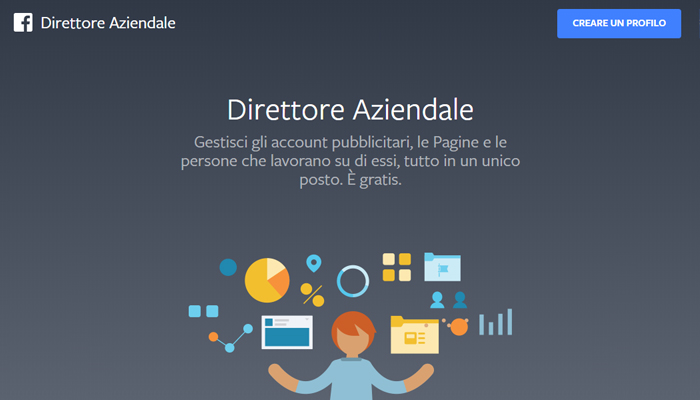
Go to business.facebook and click on the blue button at the top right “Create a Profile.”
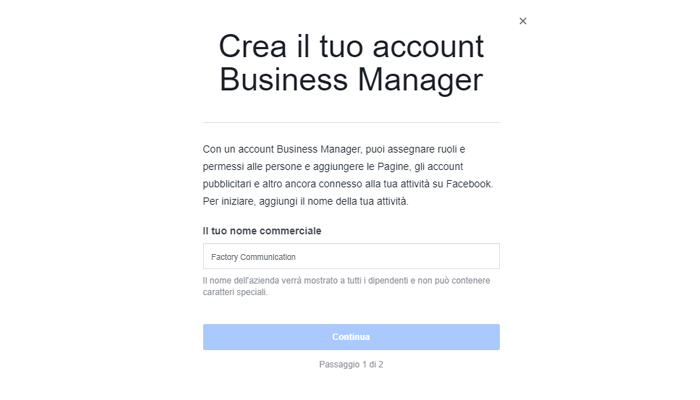
Next, in the pop – up box you will need to enter your company name.
In the last step you will need to enter your company’s e-mail address and click “finish.” This is it, we have created our business manager account.
You now have two options: create a new Facebook business page or add an existing one. If you want to manage your clients’ business pages you will have to, instead of clicking on “add page,” use the “request access” option.
Keep these two important differences in mind! Remember that once you add the advertising account on Facebook Business Manager you cannot remove it, so pay attention and add only the accounts you own.
You will also be able to add people to help you manage Facebook resources, connect your business partners, and add your Instagram account.
Let’s get down to business: Facebook business manager how it works
Now that you have created your Facebook business account you are ready to indulge on the dashboard, and create new advertising campaigns.
If you click on the words “Business Manager” at the top left of the dashboard you will see a section divided into 5 categories: Schedule, Create and Manage, Measure and Report, Resources, and Settings.
Watch out! Before you create your first online ad, there’s another crucial step: setting up the Facebook pixel.
Are you wondering what they are? They are small pieces of code that Facebook produces for you. By placing this code on your website you can monitor and track your conversions, optimize performance, and create highly personalized and targeted audiences for your ads.
With your Business Manager you can create up to 10 pixels!
Now that we’ve set up the Facebook pixel, you can have fun creating your first online campaign!
Remember that if you want to be successful, you always have to establish your goals and tracking parameters first, otherwise you’ll just blow a hole in the water.
Keep following us if you want to find out more about the boundless world of Business Manager!
We remind you that in the section of our site dedicated to marketing on Facebook you can find lots of information about how Facebook works and how you can use it to grow your Business.
If you would like to explore this topic further, I invite you to read these articles: