


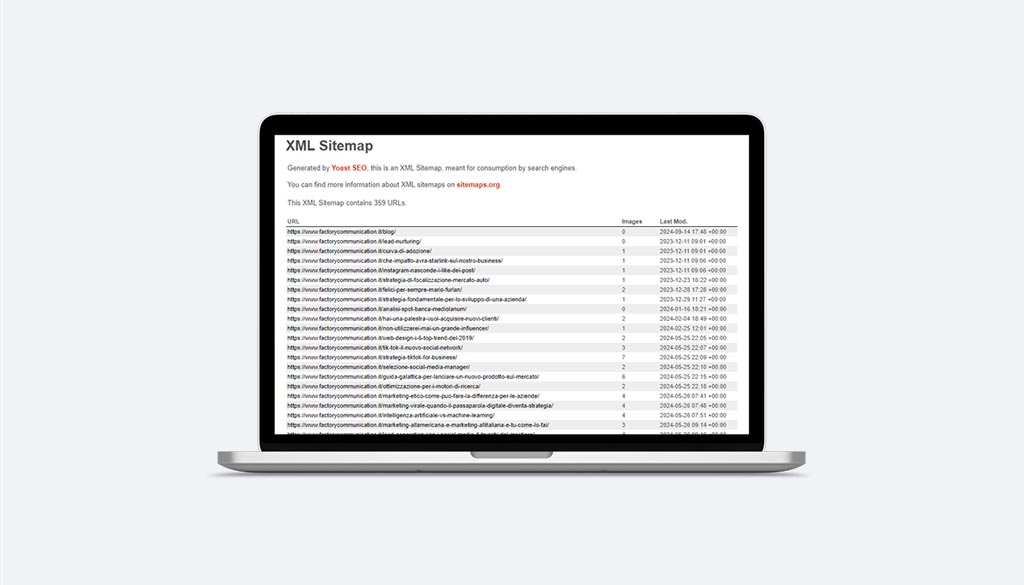
In this article we look at how to enter WordPress xml sitemaps into Google Search Console to speed up the indexing of your website content on Google.
If you are reading this article you have probably typed one of these Keywords into Google:
- wordpress site sitemap
- wp sitemap page
- google sitemap wordpress
- wordpress sitemap plugin
- sitemap wordpress google search console
Regardless of your Google search, I can tell you that you have come to the right place.
In this article, let’s see how to notify sitemaps with Yoast SEO to Google Search Console to speed up the indexing of your new website or eCommerce and improve the ranking of your content on Google search results and other search engines (search engines crawl).
What are WordPress sitemaps xml
Sitemaps are files with an .xml extension that contain a list of your site’s content to be indexed.
They are a great tool for providing search engines with a real list of pages to scan and index.
Within them you can also include other pages of our site, where for example the crawlers can find more “hidden” content.
Yoast SEO sitemap Google Search Console
If your website is developed in WordPress, we recommend using the Yoast Seo plugin, which offers lots of important features for writing content in compliance with the rules and your SEO Strategy.
One of these features concerns precisely the creation and updating of site maps.
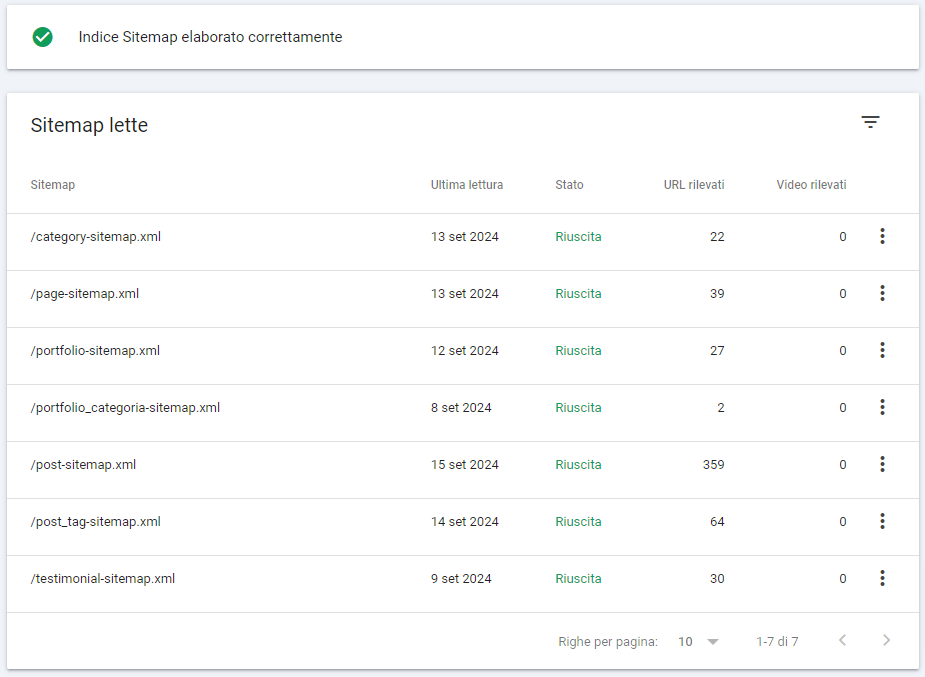
The image shows the list of xml sitemaps of our site generated directly from the Yoast SEO Plugin.
As you can see they are broken down by content type, so Google knows, right away, whether a sitemap contains articles, or products, tags, categories etc.
Once the WordPress sitemaps have been generated with Yoast update sitemap, it is essential to notify Google Search Console, the free Google service that allows us to check and optimize our website’s SEO strategy in the best possible way.
WordPress sitemap plugin and procedure for submitting sitemaps to Google Search Console
There are various tools and plugins that allow you to submit WP sitemaps to Google.
Below is the procedure you can use if you have installed the Yoast SEO Plugin one of the most widely used on WordPress.
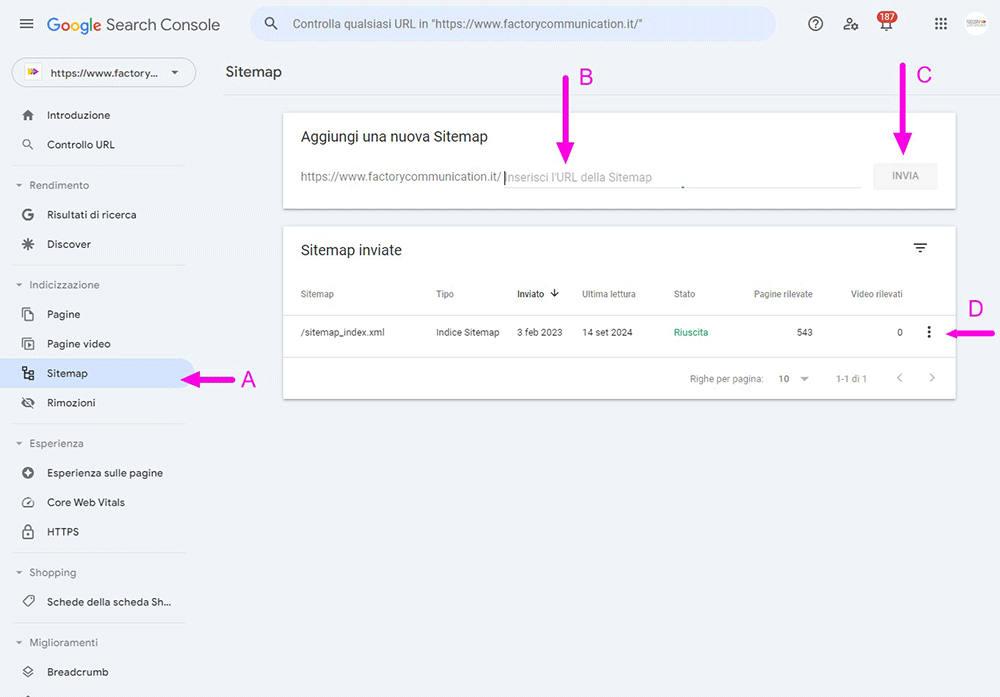
To submit the sitemap to Google Search Console of a website built with WordPress and complete with the Yoast SEO plugin is enough:
- Type this string https://nomesito/sitemap_index.xml type:
https://www.factorycommunication.it/sitemap_index.xml - Verify that sitemaps are present
- Log in to your Google Search Console Account. If you do not have one, you can register for free using a Gmail
- Click on “Sitemap” found in the left sidebar (A)
- Add sitemaps of your own site via the final part of the url like “post-sitemap.xml” (B)
- To finish the procedure simply click SEND (C).
- Refresh the page to check whether the sitemap has been added correctly (D).
If your site is multi-language then we recommend that you also use Yoast wpml sitemap.
How can I check if my sitemap has been properly uploaded to Google Search Console
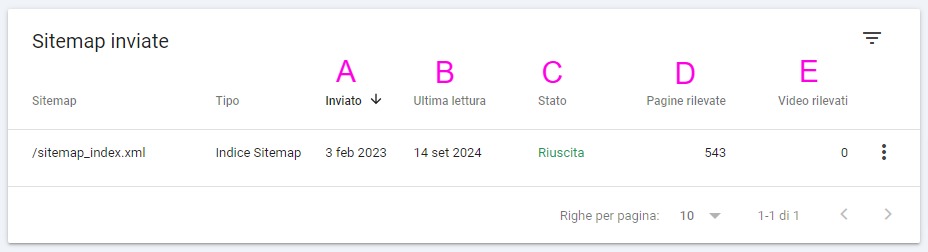
To check if your sitemap has been properly uploaded to Google Search Console, you can follow these steps:
- Log into Google Search Console and select your website property.
- In the side menu, click on “Sitemap” under the “Indexing” section.
- On the Sitemap page, you will see a list of all sitemaps submitted for your site.
- Check the status of each sitemap:
- If the status is “Successful” (C), it means that Google has read the sitemap correctly.
- If you see “Errors,” expand the section to view details and correct any problems.
- Check the “Last Read” column (B) to see when Google last scanned your sitemap.
- Also check the “Submitted” column (A) to see the date you submitted the sitemap via Search Console.
- If you do not see your sitemap in the list, make sure you have submitted it correctly. You can do this by entering the sitemap URL in the “Add a new sitemap” field and clicking “Submit.”
- You can perform an additional check by comparing the number of uploaded pages and videos with those in your sitemaps (D) and (E).
- For more in-depth analysis, you can use the “Coverage” report in Search Console, filtering URLs to display only those included in a specific sitemap.
If you encounter problems or errors, correct any anomalies in your sitemap and resubmit it. Remember that Google may take some time to fully process a new sitemap or updates.
Want to learn more about content indexing topics? Read these articles:
- WordPress 6.9.4 updates: critical security maintenance
- PHP? Find out which version to use in 2026 for your site or eCommerce!
- Organic positioning: why is the Blog important?
- Hreflang: the ultimate guide to multilingual SEO optimization
- Google update 2024: how can they affect your website?
- SEO hosting: the importance in indexing a website
- Add URL: add url to google
Sitemap xml WordPress FAQ
Uploading the sitemap to Google Search Console is important because it helps Google discover and index your site’s pages more effectively. This can improve your site’s visibility in search results (search results) and ensure that all important content is crawled regularly.
There are several ways to generate a sitemap in WordPress site:
– Use the built-in sitemap feature of WordPress (from version 5.5)
– Install a dedicated plugin such as Yoast SEO, Rank Math or Google XML Sitemaps
– Use an online sitemap generator
Most SEO plugins offer advanced features to customize the sitemap.
Some of the best plugins to create sitemaps in WordPress are:
– Yoast SEO
– Rank Math
– Google XML Sitemaps
– All in One SEO Pack
– XML Sitemap Generator for Google
These plugins offer comprehensive functionality to generate optimized XML format sitemaps.
You should update the sitemap whenever you add, edit or remove significant content from your site. Most sitemap plugins automatically update the sitemap when you publish new content. In general, it is a good practice to check and update the sitemap at least once a month.
Yes, most sitemap plugins allow you to exclude specific pages, posts, or content types from the sitemap. This can be useful if you have pages that you don’t want indexed by search engines. Check your sitemap plugin’s settings for exclusion options