



A website can be fast, well-written, and cited by authoritative sources, yet remain invisible in a significant portion of the searches people perform every day. The reason is simple: many searches start with a glance.
A product spotted in a store window, a chair noticed in a café, a dish photographed at a restaurant.
Those search results reveal which images have been made readable by search engines. And search engines interpret images through the text that accompanies them: the file name, the alt text, and the context of the page that hosts them.
This guide covers the entire process, from preparing the file before uploading to the final check. At the end, you’ll find an eight-point checklist to review what you already have online.
What is image SEO?
Image SEO refers to the set of activities that make a website’s photos and graphics understandable to search engines: file name, alt text, format, file size, dimensions, and page context.
An optimized image appears in Google Images, speeds up page loading, and describes its content even to users who browse with a screen reader.
To put it another way: a search engine interprets a photograph primarily based on what surrounds it. Computer vision systems are advancing rapidly, but the associated text remains the most reliable signal—and the one over which you have direct control.

Why Images Matter More Today Than Ever Before
For years, image optimization was considered a finishing touch. Today, it spans three distinct channels, and each one attracts a different audience.
Searches that start on Google Images
Marco is furnishing his second restaurant. He has a specific chair in mind—one he saw in a bistro in Lyon—but he can’t remember the model’s name. He opens Google, types in “bistro chair,” and switches to the Images tab.
From there, he begins to narrow down his options. He selects “Show Dimensions” from the tools menu because he wants to view the high-resolution photos and examine the details of the chair. Then he uses the size filter to exclude the thumbnails. He chooses the color because light wood is what he has in mind.
Apply the “Type” filter to view only product photos. Finally, sort by date to find the models still in the catalog.
Five filters, five steps. Each one processes information that the engine has extracted from the file and the page hosting it: actual dimensions, dominant color palette, type, publication date, and surrounding text.
An image that carries that information passes through all the filters; the others are left out.
If your company manufactures those chairs, the difference between being included in Marco’s selection and being left out comes down to just a few lines of text accompanying the photo.
Google Lens and Visual Search
The next step completely bypasses the keyboard. A user frames an object with the camera and asks the engine to recognize it. Lens compares the image with its indexed images and suggests similar products, complete with stores and prices.
For a business, the logic remains the same: appearing in the search results requires that its photos be indexed, clear, and accompanied by clear information about the product, material, and category. Well-designed product listings address both of these aspects, as we’ll see in the guide on product page SEO.
Images in AI Responses
The third channel is the most recent. AI-generated answers, both within and outside of Google, often accompany the text with images taken from the pages they cite. A well-described photo is more likely to appear next to the answer, and that presence translates into visibility even when it doesn’t result in a click.
We addressed this topic by analyzing the case of one of our pages that ranked first in organic search results but received very few clicks, in the article dedicated to how the AI Overview works.

Before Loading: Size, Weight, and Format
The best work is done while the image is still on your computer. Three factors, in order of importance.
How Many Pixels Do You Really Need?
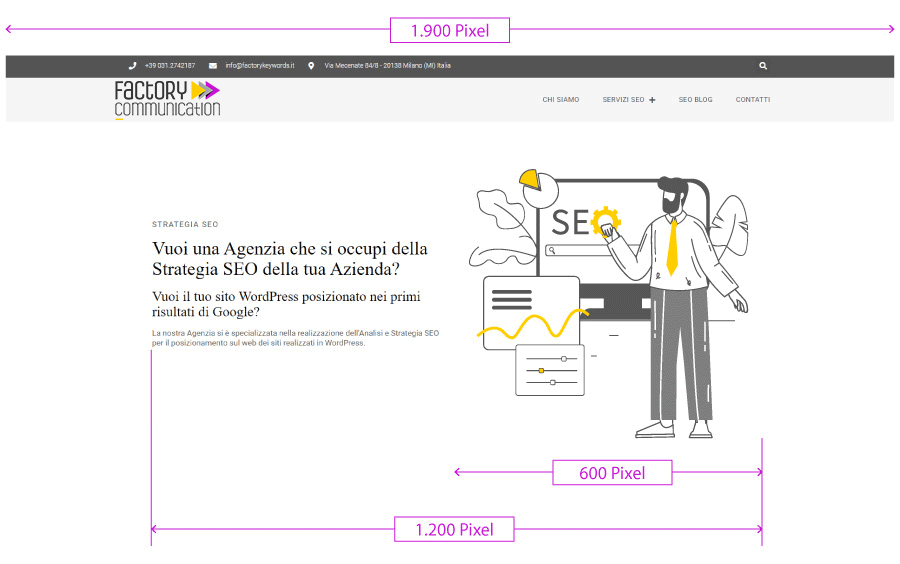
There is only one guiding rule: the width of the image matches that of the space that contains it.
Let’s look at a specific example. A website designed for a desktop resolution of 1,920 pixels typically has a main content area of around 1,200 pixels.
An image centered in a column is therefore about 600 pixels wide. Uploading a photo that is 3,000 pixels wide—when it will be displayed at 600 pixels—means the browser has to download the necessary data six times.
For content images, a width between 1,200 and 1,600 pixels works well even on high-density screens. Full-page opening images can go up to 1,920. Beyond that, the visual benefit diminishes, and all that’s left is the file size.
How much should an image weigh?
File size is measured in kilobytes and directly affects loading time, especially on a phone.
With modern file formats, a reasonable guideline is to keep content images under 150 KB and the homepage image under 250 KB. These are generous limits compared to a few years ago, because compression has improved: the same photo that was 200 KB in JPEG often takes up less than 80 KB in WebP while maintaining the same quality.
The first visible image on the page deserves special attention. It is the one the browser downloads first, and the search engine measures it as Largest Contentful Paint, one of the Core Web Vitals. Optimizing it has a noticeable effect on the overall score.
Which format to choose
| Format | When to Use It |
| JPEG | Photographs: When Maximum Compatibility Is Needed |
| PNG | Graphics with transparency, screenshots, text on images |
| WebP | A modern alternative to JPEG and PNG: similar quality, smaller file size, and now universally supported |
| AVIF | Even better compression than WebP, ideal for catalogs with many images |
| SVG | Logos, icons, diagrams: Since they’re vector graphics, they scale to any size and take up very little space |
Our practical tip: Adopt WebP as the default format and reserve SVG for anything that’s originally vector-based. On WordPress, there are plugins that automatically convert the media library and generate alternative versions—a topic we’ll also touch on when discussing SEO optimization for a WordPress site.
The file name is the first thing Google reads
Search engines crawl the web using automated programs that follow links and read the code on websites. The guide on how Google’s crawler works explains the process in detail. For images, the first element the program encounters is the file name.
How to Rename an Image
Try searching for `foto0001.jpg`: you’ll find a million identical results—the name cameras assign by default. That file tells you nothing.
If you’re posting a photo of a bottle, a good filename would look like `prosecco-arzana-cantina-astoria.jpg`. Three pieces of information on one line: what the product is, which label, and which winery. The words are separated by hyphens, all lowercase, with accents and special characters omitted.
Three Habits to Break
-
Rename after uploading.
The file must be renamed first, on your computer. Renaming it afterward creates a new URL and leaves behind a broken link. -
Repeat the same keyword across twenty files.
`bistro-chair-1.jpg`, `bistro-chair-2.jpg`, and so on don’t convey much information. It’s better to be more specific: `light-wood-bistro-chair.jpg`, `curved-back-bistro-chair.jpg`. -
Go by the post title.
Many systems automatically assign the article’s name to each attachment. The result is a library where twenty different images have names that are almost identical.
How do you write effective alternative text?
An effective alternative text briefly describes what the image shows in a single sentence, using the words a person would use to describe it verbally. It includes the keyword when it sounds natural, is limited to fifteen words or fewer, and avoids phrases such as “image of.” For purely decorative images, leave the field blank.
This field is the most important for two reasons that go hand in hand. The search engine reads it to understand the content of the photo. People who use a screen reader hear it instead of seeing the image. A good alternative text meets both needs with the same sentence.
When the field remains empty
A purely decorative image—a background texture, a graphic separator, or an icon that is already accompanied by text—should be left blank.
In that case, the screen reader skips it, which is exactly the desired behavior. Filling the field with keywords would only create noise for the listener.
The distinction is simple: if removing the image causes the page to lose information, you should provide alternative text. If the page remains complete, leave the field blank.
The other fields in the media library
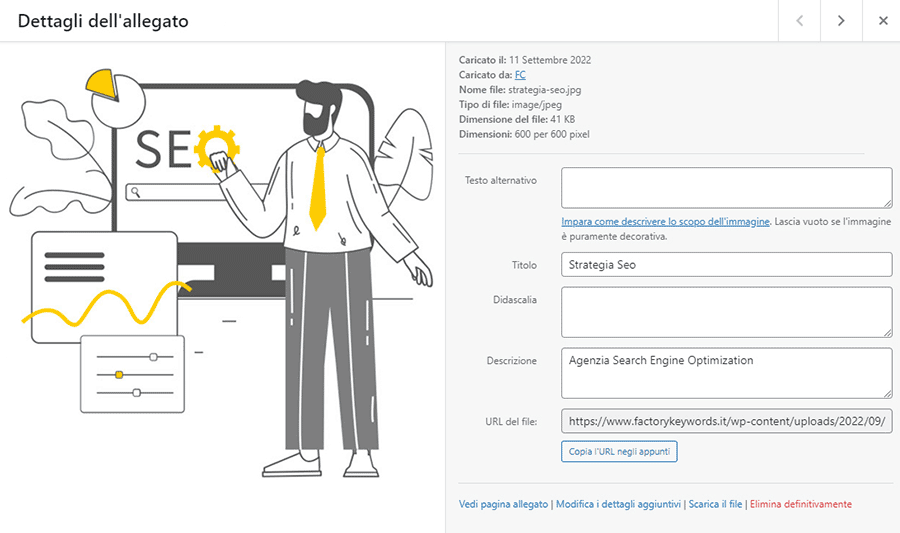
WordPress assigns four editable fields to each image. Each one has a specific function.
- Alternative text. The one just described. The most important one.
- Title. It appears when you hover over it. It has little impact on layout, but it remains useful for readers.
- Caption. If filled out, it appears below the image and is visible to everyone. Great for adding context, a data source, or a product name.
- Description. An optional field, useful for providing additional information: technical data, variants, and references that round out the picture.
A note on consistency: These fields are stored in the media library and are included with the image. Filling them out correctly once ensures they are correct wherever that file is reused.
Speed and accessibility: two sides of the same coin
Optimizing images produces two effects that may seem unrelated but actually reinforce each other.
Lazy Loading and Responsive Images
Lazy loading causes the browser to download only the images that are about to appear on the screen. On a long page with lots of photos, the performance gain is significant.
WordPress applies this automatically starting with version 5.5, with one exception to keep in mind: it’s best to keep it disabled for the first visible image, which should load immediately.
Responsive images work on a different principle. The system generates multiple versions of the same file at different widths and lets the browser choose the one that’s best suited for the device.
A phone downloads the small version, while an office monitor downloads the large version. This feature is enabled by default, and it’s worth checking to make sure your installed extensions support it.
Core Web Vitals
Core Web Vitals measure the actual experience of users who open the page. Images affect two of the three metrics:
- Largest Contentful Paint, which measures how long it takes for the main element to appear,
- Cumulative Layout Shift, which tracks content shifts during loading.
The second issue can be resolved with a simple, low-cost solution: specify the width and height of each image in the code. The browser reserves the space in advance, and the page remains stable while it loads.
Monitoring is done through Google Search Console, which flags pages with metrics below the threshold and allows you to track their performance over time.
Accessibility
As of June 2025, the European Accessibility Act has extended accessibility requirements—which previously applied only to the public sector—to many online businesses.
Alternative text for images is one of the most immediate requirements to meet—and one of the simplest.
There is a noteworthy overlap: the work required to make a website accessible to users of assistive technologies is almost entirely the same as that required to make it accessible to search engines. We explore the regulatory framework in more detail in our guide to the European Accessibility Act and on our webpage about website accessibility.
The Eight-Point Checklist
A reminder to keep by your side while you work.
- Choose the right image. Optimizing a blurry or generic photo yields modest results. Content comes before technique.
- Rename the file before uploading it. Descriptive words, hyphens as separators, all lowercase.
- Resize to actual width. Between 1,200 and 1,600 pixels for content, up to 1,920 for thumbnails.
- Compress and convert. WebP as the standard, AVIF for rich catalogs, and SVG for logos and diagrams.
- Enter the alternative text. A short, descriptive sentence. Blank space on the decorative images.
- Fill in the caption and description when they add value. Data source, product name, technical reference.
- Check the width, height, and deferred loading in the code. The first visible image loads immediately; the others load as needed.
- Measure. Search Console for metrics and the performance report to identify which images are slowing down your pages.
At Factory Communication, this check is part of the technical audit for every site we manage, because it is one of the activities that offers the best return on time invested.
Do you want to know how your website stacks up on these eight points? Request a free consultation.
Frequently asked questions
It depends on the space where it’s displayed. As a guideline, between 1,200 and 1,600 pixels wide for content images and up to 1,920 for full-page opening images. The rule remains the same: the width follows the container.
With modern formats, keep content images under 150 KB and the splash image under 250 KB. The same photo converted to WebP typically weighs less than half as much as the original JPEG.
Yes, and it’s the most important field among those associated with an image. The search engine uses it to understand the photo’s content and assess its relevance to the search. It’s also used for accessibility, with the same text.
WebP is the sensible default choice: equivalent quality, smaller file size, and now universal browser support. AVIF compresses even better and really shines in catalogs with hundreds of images, where the cumulative savings become significant.
Yes, the technical steps are the same. It’s worth paying extra attention to quality: a generic image weakens the page it appears on, regardless of how it was created. Some platforms also include metadata that indicates the file’s synthetic origin.
The effects on page speed are immediate and measurable as soon as the page is reloaded. Ranking in Google Images requires a new crawl and typically takes a few weeks to stabilize.
SEP techniques: related articles
If you want to do SEO of your website and eCommerce, also read these articles: